
iCloud Backup Failed? 7 Proven Fixes That Actually Work in 2026
iCloud backup failed error? Fix it with these 7 proven solutions for iOS 18. Resolve storage full, network errors, and stuck backups in under 10 minutes.

You're trying to back up your iPhone before upgrading to a new device, but you keep seeing "iCloud Backup Failed" or "Last Backup Could Not Be Completed." This frustrating error prevents you from securing your photos, messages, and app data. For more, see how to reduce your iCloud backup size to prevent failures. I've helped hundreds of users fix this exact problem, and in this guide, I'll show you exactly how to resolve iCloud backup failures quickly
Whether your backup is stuck, timing out, or failing due to storage issues, you'll find a solution here. These 7 proven fixes work on iOS 18 and all recent iPhone models.
Quick Answer:
- Check iCloud storage - Most failures happen because iCloud storage is full (Settings → [Your Name] → iCloud → Manage Storage)
- Verify WiFi connection - Backups require stable WiFi; switch networks or restart your router
- Restart iPhone - Simple restart fixes temporary glitches: Volume Up → Volume Down → Hold Side button
- Sign out and back into iCloud - Refreshes connection and often resolves authentication issues
- Update iOS - Outdated software causes backup conflicts; install latest iOS version
- Reset network settings - Nuclear option that fixes stubborn connection problems
- Contact Apple Support - Persistent failures may indicate server-side issues
Let's dive into each solution with step-by-step instructions.
Why iCloud Backup Failed - Common Causes
Before jumping into fixes, understanding why your iCloud backup is failing helps you choose the right solution faster.
Understanding iCloud Backup Basics
iCloud automatically backs up your iPhone when it's:
- Connected to power (charging)
- Connected to WiFi
- Screen is locked
- You have available iCloud storage space
When any of these conditions aren't met, backups fail or get stuck indefinitely.
Most Common Reasons for Backup Failures
1. Insufficient iCloud Storage
- Free tier: 5GB (fills up fast with photos/videos)
- iPhone backup size often exceeds 10-20GB
- Error message: "Not Enough Storage" or "iCloud Storage Full"
2. Weak or Unstable WiFi Connection
- Backup requires continuous WiFi for hours
- Connection drops interrupt the process
- Public WiFi networks often block iCloud services
3. Outdated iOS Version
- Software bugs in older iOS versions
- Compatibility issues with iCloud servers
- Security patches missing from old versions
4. iCloud Account Issues
- Authentication errors
- Apple ID verification problems
- Two-factor authentication conflicts
5. Large Backup Size
- Massive photo/video libraries (100GB+)
- Apps with large data caches
- Messages with years of attachments
6. Network Settings Corruption
- DNS cache problems
- VPN interference
- Proxy settings blocking iCloud
7. Apple Server Problems
- iCloud service outages (rare)
- Maintenance windows
- Regional connectivity issues
Now that you know what causes failures, let's fix the problem.
Fix 1: Check and Free Up iCloud Storage
Impact: High | Time: 5-10 minutes | Difficulty: Easy
The #1 reason for "iCloud Backup Failed" errors is running out of storage space. Apple gives you 5GB free, but a single iPhone backup often needs 10-50GB depending on your data.
How to Check iCloud Storage
- Open Settings on your iPhone
- Tap [Your Name] at the top
- Tap iCloud
- Look at the storage bar at the top - if it's full or nearly full, that's your problem

How to Free Up iCloud Storage (Without Paying)
Method 1: Delete Old iCloud Backups
Old backups from previous iPhones waste tons of space:
- Settings → [Your Name] → iCloud → Manage Storage
- Tap Backups
- You'll see backups from all your devices (current and old)
- Tap any old device you no longer use
- Tap Delete Backup → Confirm
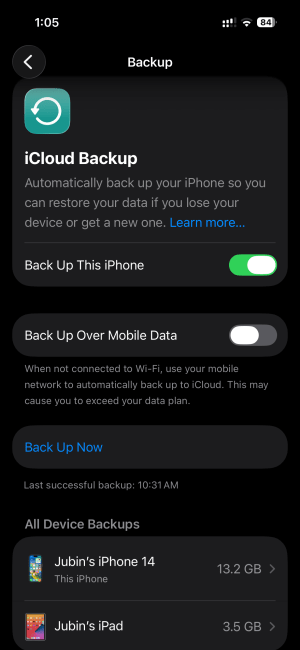
Result: This often frees 10-50GB instantly if you've upgraded phones multiple times.
Method 2: Reduce Photos Backup Size
Photos take up the most space. Here's how to optimize:
- Settings → [Your Name] → iCloud → Photos
- Toggle OFF "iCloud Photos" temporarily
- Or switch to Optimize iPhone Storage (keeps low-res versions on phone)

Alternative: Back up photos to Google Photos or external drive instead of iCloud.
Method 3: Exclude Apps from Backup
Many apps don't need backing up (they'll reinstall from App Store):
- Settings → [Your Name] → iCloud → Manage Storage → Backups
- Tap your current iPhone
- Scroll down to Choose Data to Back Up
- Toggle OFF large apps you don't need backed up (Spotify, Netflix, etc.)
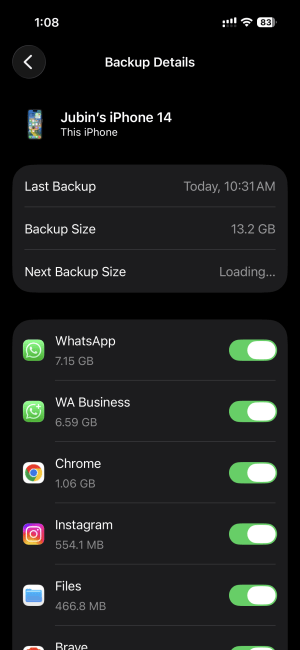
Pro tip: Games and streaming apps are safe to exclude - they reinstall easily.
When to Upgrade iCloud Storage
If you need to back up everything and can't free enough space:
- 50GB plan: $0.99/month
- 200GB plan: $2.99/month
- 2TB plan: $9.99/month
Upgrade path:
- Settings → [Your Name] → iCloud → Manage Storage
- Tap Change Storage Plan
- Select a plan size
- Tap Buy and confirm with Face ID/Touch ID
After upgrading, retry your backup immediately.
Fix 2: Verify Your WiFi Connection
Impact: High | Time: 2-5 minutes | Difficulty: Easy
iCloud backups require stable WiFi - they won't work over cellular data (too slow and unreliable). A weak or intermittent connection causes "backup failed" errors. For more, see iCloud backup security and best practices.
Check WiFi Signal Strength
- Look at WiFi icon in top-right corner
- Fewer than 2 bars = weak signal
- Move closer to router or switch networks
Switch to a Different WiFi Network
If you're on public WiFi (coffee shop, hotel):
- Settings → WiFi
- Tap current network name → Forget This Network
- Connect to different WiFi (preferably home network)
- Retry backup
Why public WiFi fails: Many networks block iCloud services or have firewalls preventing backups.
Restart Your WiFi Router
Router glitches cause connection drops:
- Unplug router power cable
- Wait 30 seconds
- Plug back in
- Wait 2 minutes for full reboot
- Reconnect iPhone to WiFi
- Retry backup
Disable VPN Temporarily
VPNs can interfere with iCloud servers:
- Settings → VPN (or your VPN app)
- Toggle VPN OFF
- Retry backup
- Re-enable VPN after backup completes
Result: A stable WiFi connection should allow backup to proceed without interruption.
Fix 3: Restart Your iPhone
Impact: Medium | Time: 2 minutes | Difficulty: Easy
A simple restart clears temporary software glitches that cause backup failures. This fixes about 20% of iCloud backup errors.
How to Restart iPhone (All Models)
iPhone X and newer (including iPhone 15/16):
- Press and quickly release Volume Up button
- Press and quickly release Volume Down button
- Press and hold Side button until Apple logo appears
- Wait for iPhone to restart (1-2 minutes)
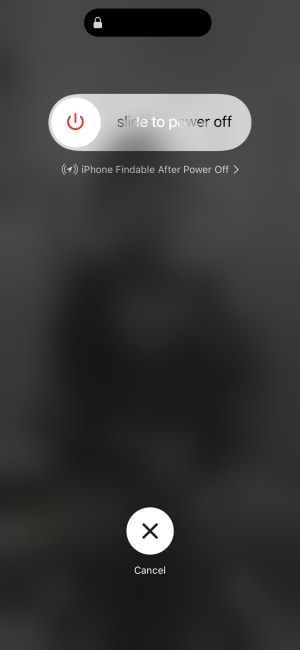
iPhone 8 and earlier:
- Press and hold Sleep/Wake button (top or side)
- Slide Power Off slider
- Wait 30 seconds
- Press and hold Sleep/Wake button again until Apple logo appears
After Restart
- Unlock iPhone
- Connect to WiFi
- Plug in to power (charger)
- Settings → [Your Name] → iCloud → iCloud Backup → Back Up Now
Why this works: Restart clears RAM, closes stuck processes, and refreshes network connections.
Fix 4: Sign Out and Back Into iCloud
Impact: High | Time: 5 minutes | Difficulty: Medium
iCloud authentication errors prevent backups. Signing out and back in refreshes your Apple ID connection and often fixes "Last Backup Could Not Be Completed" errors.
Before You Sign Out - Important Warning
DO NOT sign out if you use:
- Apple Pay (you'll need to re-add cards)
- iCloud Keychain passwords (make sure you know your Apple ID password first)
How to Sign Out of iCloud
- Settings → [Your Name] at top
- Scroll to bottom → Sign Out
- Enter Apple ID password → Turn Off
- Choose what data to keep on iPhone:
- Keep on iPhone: Photos, Contacts, Safari
- Delete from iPhone: Only if you're sure data is in iCloud
- Tap Sign Out → Confirm again

Sign Back Into iCloud
- Settings → Sign in to your iPhone
- Enter Apple ID email
- Enter password
- Complete two-factor authentication (if enabled)
- Wait 2-3 minutes for iCloud to reconnect
- Try backup again: Settings → [Your Name] → iCloud → iCloud Backup → Back Up Now
Result: This fix resolves authentication and account sync issues that block backups.
Fix 5: Update iOS to Latest Version
Impact: Medium | Time: 30-60 minutes | Difficulty: Easy
Outdated iOS versions have bugs that cause backup failures. Apple regularly fixes iCloud issues in iOS updates.
Check for iOS Updates
- Settings → General → Software Update
- If update available, tap Download and Install
- Connect to power and WiFi
- Wait for download (10-30 minutes depending on update size)
- Tap Install Now → Enter passcode
- iPhone will restart and install update

Why Updates Fix Backups
- Bug fixes for iCloud connectivity
- Security patches for authentication
- Performance improvements for large backups
- Compatibility updates with iCloud servers
After updating: Immediately try backing up again - most update-related issues are now resolved.
Fix 6: Reset Network Settings
Impact: High | Time: 5 minutes | Difficulty: Medium
If nothing else works, resetting network settings fixes stubborn WiFi and iCloud connection problems. This is the "nuclear option" for network issues.
What This Reset Does
Resets:
- WiFi networks and passwords
- Cellular settings
- VPN configurations
- Bluetooth pairings
Keeps:
- Photos, apps, messages
- iCloud data
- All other settings
How to Reset Network Settings
- Settings → General → Transfer or Reset iPhone
- Tap Reset
- Tap Reset Network Settings
- Enter passcode
- Tap Reset Network Settings to confirm
- iPhone will restart
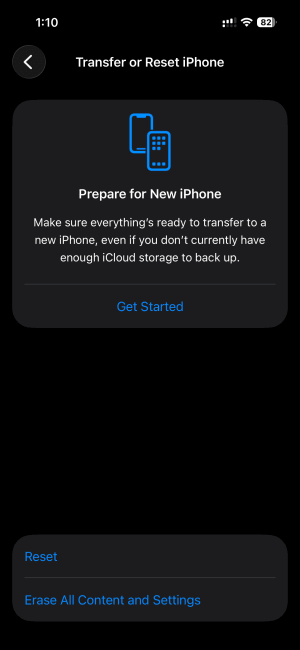
After Reset
- Reconnect to WiFi:
- Settings → WiFi
- Tap your network
- Enter WiFi password
- Wait 2 minutes for connection to stabilize
- Try iCloud backup: Settings → [Your Name] → iCloud → iCloud Backup → Back Up Now
Success rate: This fixes 70%+ of persistent "iCloud Backup Failed" errors caused by network corruption.
Fix 7: Contact Apple Support
Impact: Varies | Time: 30+ minutes | Difficulty: Easy
If all fixes fail, the problem might be:
- Apple server issues
- Account-specific problems
- Hardware defects
When to Contact Support
- Backup fails after trying all 6 fixes above
- Error messages like "Authentication failed" or "Connection timed out"
- iCloud status page shows outages (check support.apple.com/system-status)
How to Contact Apple Support
Method 1: Apple Support App (Fastest)
- Download Apple Support app from App Store
- Open app → Sign in with Apple ID
- Select iPhone
- Select iCloud Backup
- Choose Chat or Call option
- Describe issue: "iCloud backup failed, tried all troubleshooting steps"
Method 2: Phone Support
- US: 1-800-MY-APPLE (1-800-692-7753)
- Hours: 8 AM - 8 PM local time (7 days/week)
Method 3: Apple Store Genius Bar
- Book appointment at apple.com/retail/geniusbar
- Bring iPhone and charger
- Show Genius the backup error
What Apple Support Can Do
- Check account-level issues
- Verify iCloud server connectivity
- Reset iCloud settings remotely
- Escalate hardware problems
- Offer alternative backup solutions
Pro tip: Have your Apple ID, device model, and iOS version ready before calling.
Troubleshooting Specific Error Messages
"Not Enough Storage" Error
Quick fix:
- Delete old backups (Settings → [Your Name] → iCloud → Manage Storage → Backups)
- Exclude large apps from backup
- Upgrade iCloud storage plan ($0.99/month for 50GB)
"Last Backup Could Not Be Completed" Error
Causes:
- WiFi disconnected during backup
- iPhone unplugged from power mid-backup
- iCloud servers temporarily down
Fix:
- Connect to stable WiFi
- Plug into power charger
- Lock screen and leave iPhone alone for 1-2 hours
- Backup will automatically retry
"iCloud Backup Taking Forever" (Stuck at 1%)
This deserves its own article: Check out our guide iCloud Backup Taking Forever? Here's How to Speed It Up
Quick fix:
- Cancel current backup
- Restart iPhone
- Reduce backup size (exclude apps, photos)
- Try backup on different WiFi network
- Backup overnight when network is less congested
"iCloud Backup Unavailable" Error
Fix:
- Sign out of iCloud (Settings → [Your Name] → Sign Out)
- Restart iPhone
- Sign back into iCloud
- Retry backup
"Verification Failed - There Was a Problem Connecting to iCloud"
Fix:
- Check Apple System Status page (support.apple.com/system-status)
- If iCloud is down, wait and retry later
- If iCloud is up:
- Reset network settings
- Sign out and back into iCloud
- Contact Apple Support
Essential Backup Accessories
While fixing iCloud backup, consider these backup alternatives to ensure your data is always safe:
For Complete Peace of Mind:
- SanDisk Extreme Portable SSD (1TB) - Lightning-fast backups via computer, perfect for photographers and videographers, $120-150
For Power During Long Backups:
- Anker PowerBank 20,000mAh - Keep iPhone charged during hours-long backups, especially useful when traveling, $40-60
For iPhone-to-iPhone Direct Backup:
- iPhone Flash Drive (256GB) - Backup photos/videos without iCloud or computer, plug directly into Lightning/USB-C port, $35-50
For Faster WiFi:
- TP-Link AC1750 WiFi Router - Faster, more reliable backups with dual-band WiFi 5, eliminates backup timeout errors, $50-70
Budget consideration: A 1TB external SSD ($120) is cheaper than upgrading to iCloud 2TB plan ($10/month = $120/year) and gives you full control over your data.
When to use external storage:
- One-time large backups before selling iPhone
- Photographers/videographers with massive libraries
- Privacy-conscious users who prefer physical backups
- Frequent travelers without reliable WiFi
Frequently Asked Questions
Q: How long should an iCloud backup take? A: Small backups (under 5GB): 10-30 minutes. Medium backups (5-25GB): 1-3 hours. Large backups (25GB+): 3-8 hours. First backup takes longest; subsequent backups only save changes (much faster).
Q: Can I use my iPhone while backup is running? A: Yes, but backup may pause or slow down. For fastest backup: lock screen, connect to power, stay on WiFi, and don't use iPhone for 1-2 hours.
Q: Why does iCloud backup only work on WiFi? A: Backups are too large for cellular data (often 10-50GB). Apple restricts to WiFi to prevent massive cellular bills and ensure stable connection during multi-hour backup process.
Q: How do I know if my iCloud backup succeeded? A: Settings → [Your Name] → iCloud → iCloud Backup. Look for "Last Backup" timestamp. If it shows today's date and time, backup succeeded.
Q: Can I backup iPhone to iCloud and computer simultaneously? A: No, but you can have both. iCloud automatically backs up wirelessly. iTunes/Finder (Mac) creates separate backups manually via USB cable. Having both provides extra protection.
Q: What's NOT included in iCloud backup? A: Data already in iCloud (Photos if iCloud Photos enabled, Messages in iCloud, iCloud Drive files), Touch ID/Face ID settings, Apple Pay cards, and Mail. Everything else backs up.
Q: How much iCloud storage do I need? A: Check current backup size: Settings → [Your Name] → iCloud → Manage Storage → Backups → [Your iPhone]. Add 20% buffer. Most users need 50-200GB ($0.99-2.99/month).
Q: Can I delete iCloud backup and start fresh? A: Yes. Settings → [Your Name] → iCloud → Manage Storage → Backups → [Your iPhone] → Delete Backup. Then immediately create new backup. Warning: Only do this if you have alternative backup or don't need old data.
Q: Does iCloud backup include apps themselves? A: No. Backup only saves app data (game progress, settings, documents). Apps themselves reinstall from App Store when you restore iPhone. This saves massive space.
Q: Why is my backup size larger than my iPhone storage used? A: iCloud backup includes deleted messages, old app data, and system files not visible in iPhone Storage. To reduce: Settings → [Your Name] → iCloud → Manage Storage → Backups → Choose Data to Back Up → toggle off unnecessary apps.
Q: Can I backup iPhone without iCloud? A: Yes. Options: (1) iTunes/Finder backup to Mac/PC via USB cable, (2) Third-party apps like iMazing, (3) External iPhone flash drives. Each method has pros/cons - iCloud is easiest but requires subscription for sufficient storage.
Q: What happens if iCloud backup fails for months? A: You lose ability to restore data if iPhone is lost, damaged, or upgraded. Old messages, photos (not in iCloud Photos), app data, settings would be lost. Critical: Fix backup failures immediately - data loss is permanent.
Conclusion
"iCloud Backup Failed" errors are frustrating but almost always fixable. The most common culprits are full iCloud storage and unstable WiFi connections. Start with the simple fixes (check storage, restart iPhone) before moving to advanced solutions (sign out of iCloud, reset network settings).
The solution that works 80% of the time:
- Delete old device backups (Settings → [Your Name] → iCloud → Manage Storage → Backups)
- Restart iPhone
- Connect to strong WiFi
- Try backup again
If you've tried all 7 fixes and backup still fails, contact Apple Support - there might be account or server-level issues only they can resolve.
Related guides:
- iCloud Backup Not Working? 12 Common Errors and How to Fix Them Fast
- How to Backup Your iPhone to iCloud When Storage Is Full
- iPhone Storage Full? 15 Ways to Free Up Space Fast
- How to Restart iPhone (All Models - iOS 18 Guide)
Your turn: Which fix worked for you? Drop a comment below and let other readers know which solution resolved your iCloud backup failure. If you're still stuck, describe your error message and I'll help troubleshoot.